Meet the REV Hardware Client 2
Started in the 2023-2024 season, Tech Tips are segments released in the FIRST Tech Challenge Team E-mail Blast. Sometimes the Tech Tips are included in whole in the email blast, but sometimes there is more content than is reasonable in the email blast so partial content is included in the blast with the rest of the content here.
A Fresh Start for the REV Hardware Client
The REV Hardware Client (RHC) is the desktop app most teams use to keep their Control Hub, Expansion Hub, and Driver Hub software up to date. Its successor, the REV Hardware Client 2 (RHC 2), is not just a new version number - REV rebuilt it from the ground up as a completely separate application. That has a few benefits worth knowing about:
It runs on Windows, macOS, and Linux. The original RHC was a Windows-only app. RHC 2 is available for Windows 10 and 11, recent versions of macOS, and recent Ubuntu and Debian Linux releases, so teams are no longer tied to a Windows laptop to maintain their robot. This is great for teams who might be tied to Mac or Linux-based school machines.
It installs alongside the original, not on top of it. There is no automatic upgrade path from the original RHC to RHC 2. You install RHC 2 on its own, and REV recommends not running both apps at the same time.
It covers more than one program’s hardware. RHC 2 manages devices for both FIRST Tech Challenge and FIRST Robotics Competition, so its Downloads list includes files you can safely ignore. It even handles some hardware for the future control system, such as the A301 motors.
For step-by-step installation instructions and how to pre-download the files your devices need, see Installing and Updating the REV Hardware Client.
Warning
If your team uses an Android phone as a Robot Controller, keep the original REV Hardware Client installed. RHC 2 cannot install or update the Robot Controller App on an Android phone. See Installing the RHC 2 for details.
What’s New in RHC 2
Beyond running on more operating systems, RHC 2 maintains features that most users know and love, reworks a number of existing features, and adds some we didn’t know we needed. Some highlights for FIRST Tech Challenge teams:
Automatic device detection - plug a supported device in over USB and RHC 2 finds it, with no need to hunt through menus.
One-click updates - update all of the software on a connected device in a single step, or open the update manager to update several devices of the same type.
Offline downloads - download the latest firmware, operating system, and app files while you have internet access, then install them later at a competition where you don’t.
Backup and restore - back up user data from supported devices and restore it later.
Wireless Control Hub connections - connect to a Control Hub over its Wi-Fi network, in addition to USB.
FTC Log Viewer - view and stream the Robot Controller’s log as your robot runs (see the next section).
Self-updating - RHC 2 checks for new versions of itself, and shows you what changed after an update.
USB and Wi-Fi Programming - RHC 2 maintains an active session window for the Control Hub. If a Wi-Fi session drops it doesn’t immediately kill the programming environment, when Wi-Fi is restored the session window reconnects and continues just like a web browser. This helps prevent lost data while programming Blocks and OnBot Java through the RHC 2.
Dark mode - for the late-night build sessions.
The full list of features, supported devices, and system requirements is on REV Robotics’ REV Hardware Client 2 documentation, and the REV Hardware Client 2 changelog tracks what’s been added in each release.
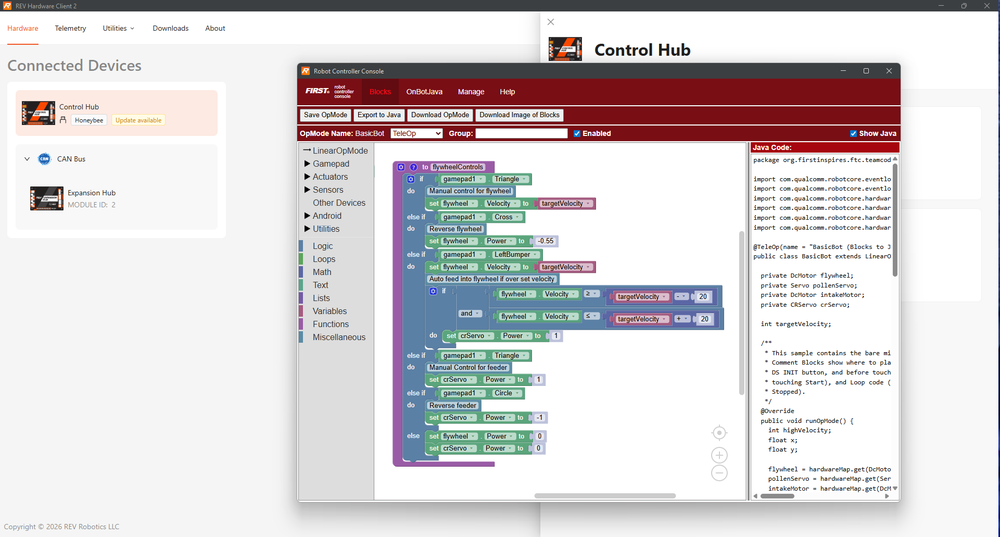
New active session programming portal in RHC 2.
Using RHC 2 to update individual devices is covered on these FTC Docs pages:
NEW: Live Log Streaming
When something goes wrong on a robot, the Robot Controller’s log file is usually the best place to find out why, but digging it out of the Control Hub after the fact takes time. The FTC Log Viewer in RHC 2 streams the log live while your robot runs, so you can watch messages appear as you start an OpMode, press buttons, or reproduce a problem.
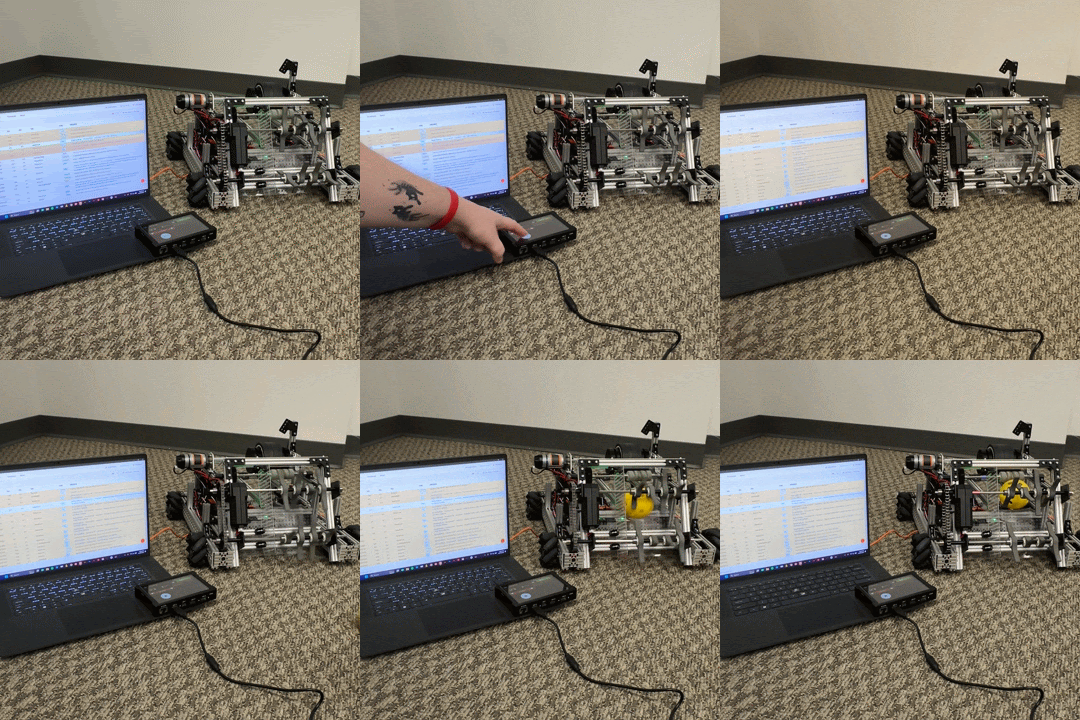
For tips on what to look for once you have the log in front of you, see Using Log Files.
Got any questions about the REV Hardware Client 2? Come start or join the conversation on the FTC Community Forums!